
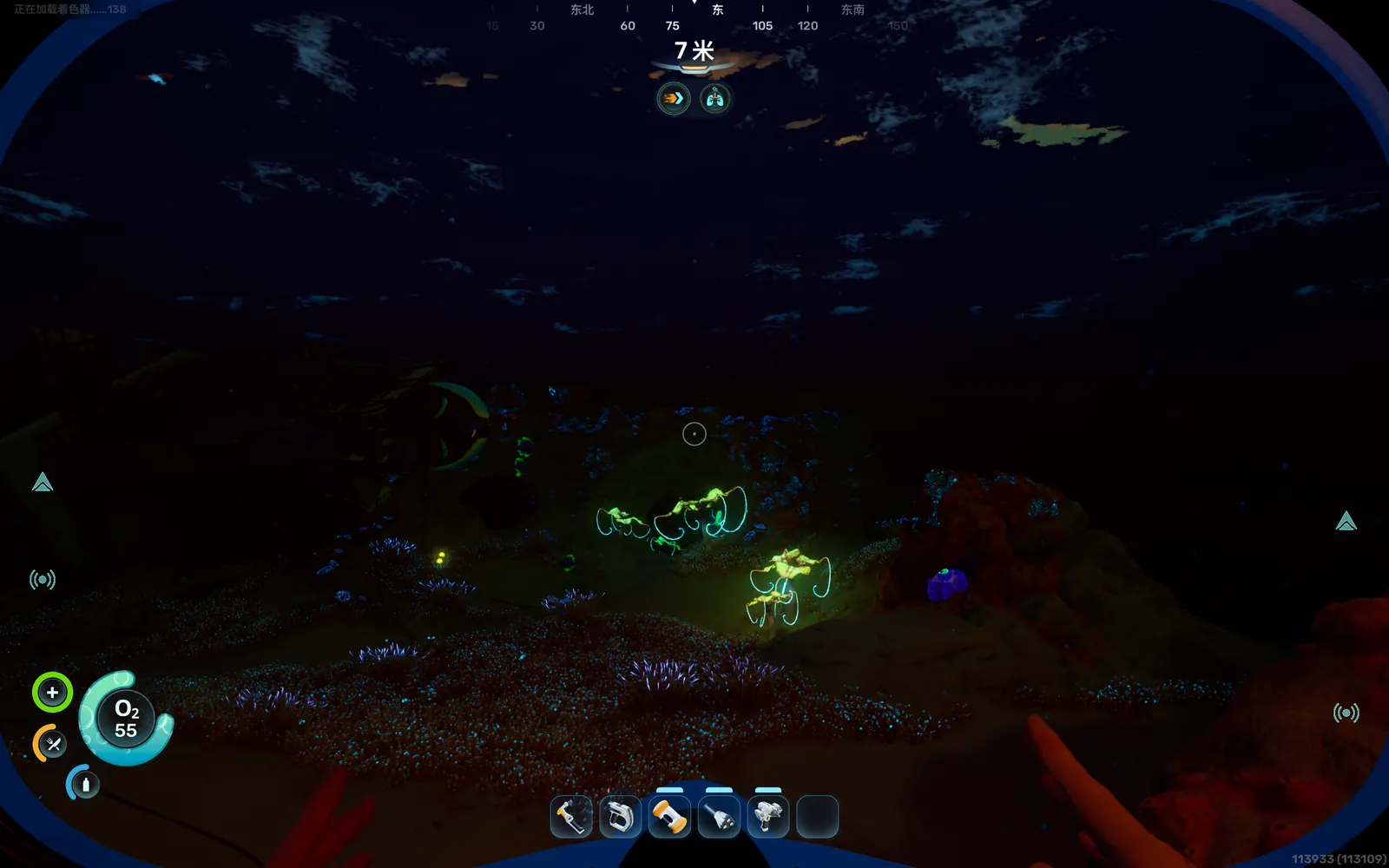
Subnautica 2 PC launch problems usually fall into four buckets: corrupted install files, an outdated Windows or GPU stack, the game launching on integrated graphics, or a PC that does not meet the current DirectX 12 requirements.
Use the checklist below in order. Stop when the game launches normally, and keep notes on what changed in case you need to contact support.
1. Check the minimum PC requirements first
If you see a DirectX 12 error, a GPU compatibility message, or a crash before the main menu, first compare your PC against the current Steam requirements.
| Requirement | Minimum listed on Steam | Recommended listed on Steam |
|---|---|---|
| OS | Windows 10 / 11 | Windows 11 |
| CPU | Intel Core i5-8400 or AMD Ryzen 5 2600 | Intel Core i7-13700 or AMD Ryzen 7 7700X |
| RAM | 12 GB | 16 GB |
| GPU | GeForce GTX 1660 6GB or Radeon RX 5500 XT 6GB | GeForce RTX 3070 8GB or Radeon RX 6700 XT 8GB |
| DirectX | Version 12 | Version 12 |
| Storage | 50 GB available | 50 GB available |
If your GPU is below the minimum, the rest of the checklist may not solve the launch error. If your PC meets the minimum, continue with the official software checks.
2. Verify the game files in Steam
Missing or corrupted files are the safest first fix to try.
- Open your Steam Library.
- Right-click Subnautica 2.
- Open Properties.
- Go to Installed Files.
- Choose Verify integrity of game files.
Let Steam finish the scan before launching again. Do not change launch options at the same time, or you will not know which change affected the result.
3. Update Windows and your GPU driver
For general crashes, Unknown Worlds recommends updating Windows and your graphics driver.
For Windows 10 DX12 launch issues, the official Help Center calls out one extra requirement: Windows 10 should be on version 22H2, build 19045 or newer. Press Windows Key + R, type winver, and check the version before retrying.
For GPU drivers:
- NVIDIA players should update through GeForce Experience or NVIDIA’s driver download flow.
- AMD players should update through AMD Adrenalin Software or AMD’s driver download flow.
- Restart the PC after a major driver or Windows update before launching again.
If a community post recommends an older driver, treat that as a hardware-specific lead, not a general fix. Check AMD, NVIDIA, Microsoft, Steam, or Unknown Worlds support before rolling back drivers.
4. Force Subnautica 2 to use the dedicated GPU
If you have both integrated graphics and a dedicated NVIDIA or AMD GPU, Windows may need to be told which GPU to use.
On Windows 11:
- Open Settings.
- Go to System > Display > Graphics.
- Add
Subnautica2.exeas a desktop app. - Set the GPU preference to High Performance.
- Restart Subnautica 2.
For Steam installs, use Manage > Browse local files from the game’s Steam library entry to find the installation folder and Subnautica2.exe.
5. Clear Steam download cache
If verification passes but the game still fails to launch, clear Steam’s download cache.
- Open Steam.
- Open Settings.
- Go to Downloads.
- Choose Clear Download Cache.
Steam may sign you out. Sign back in, then launch the game again without adding extra launch commands.
6. Close overlays and background tools
Overlay and tuning tools can conflict with games during startup. Before another test launch, close or temporarily disable obvious background conflicts such as Discord Overlay, MSI Afterburner, RivaTuner, capture overlays, and aggressive antivirus blocking for the game folder.
Do this as a clean test, then turn tools back on one at a time if the game starts working.
What Hotfix 1 and Hotfix 3 changed
Hotfix 1 updated the startup crash error pop-up for AMD graphics cards and DirectX 12 issues so it could point players toward better support guidance.
Hotfix 3 included DLSS crash fixes, a DLSS 4.5 upgrade, a rare startup crash fix, and extra crash-report context. If you have not launched since those updates, update the game first before spending time on deeper troubleshooting.
When to contact support
Contact Subnautica support if the official checks do not solve the launch problem. Include:
- Windows version and build number.
- CPU, GPU, RAM, and laptop/desktop model if relevant.
- Storefront, such as Steam, Epic, or Microsoft Store.
- The exact error text or a screenshot.
- Crash logs if you have them.
- Which checklist steps you already tried.
Quick checklist
- Compare your PC with the current Steam minimum requirements.
- Verify Subnautica 2 files in Steam.
- Update Windows and your GPU driver.
- On Windows 10, confirm version 22H2 / build 19045 or newer.
- Force
Subnautica2.exeto use the dedicated GPU if your PC has one. - Clear Steam download cache.
- Temporarily disable overlays and conflicting background tools.
- Update to the latest hotfix, then retry.
- Send support your specs, Windows build, error text, screenshots, and crash logs if it still fails.